 Planning Version Merge
Use
You use this function to copy selected
Supply Network Planning
(
SNP)
key figures that you planned in an APO planning version (copy of the active version) back into the active version. You can limit your selection to location products and SNP planners.
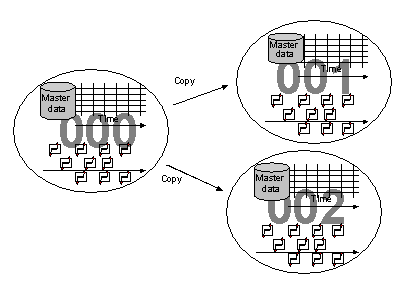
Multiple SNP planners can first make copies of the active version’s master data and transaction data:
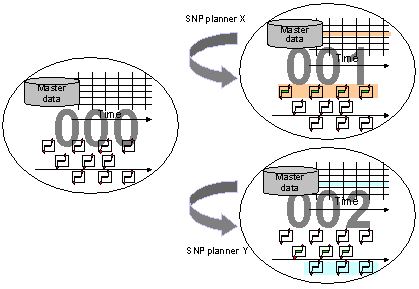
The SNP planners then revise these copies within their individual planning environments. Each SNP planner has his or her own planning section (product and location):
The SNP planners then copy the revised planning versions back into the active version:
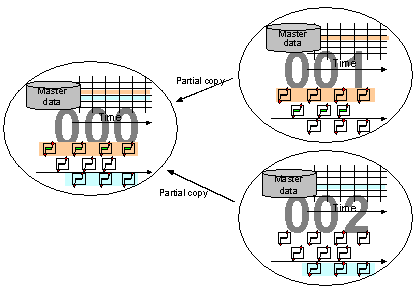
You have to ensure that the plans of the various SNP planners do not overlap since, when the individual planning versions are copied back into the active version, the version that is copied back last overwrites the data from all the previously copied versions.
Prerequisites
You have created one or more copies of the active version (000) as planning versions.
An SNP planner has been assigned to all the location products in master data.
You have authorization for the relevant locations and products to copy the data from the planning version back into the active version (authorization object C_APO_PLNR). The SNP planner controls authorization.
Features
You can use this function to copy four SNP key figures from a planning version back into the active version. PP/DS order data cannot be copied. The following is a list of the SNP key figures:
Planned Production (key figure
9APPROD
, key figure function 2001)SNP Distribution Receipt (key figure
9APSHIP
, key figure function 4001)Deployment Distribution Receipt (key figure
9AFSHIP
, key figure function 4005)Safety Stock (key figure function 3003)
Selection of SNP Key Figures
You choose the SNP key figures that you want to copy back into the active version in transaction /SAPAPO/VERMER:
Planning area: Indicates the SNP planning area that key figures are to be copied from into the active version.
Key figures: Indicates the SNP key figures that are to be copied back.
Planning version (source): Name of the planning version to be copied back.
Planning version (target): Name of the active version. You cannot modify this entry.
Product: Name of one or more location products whose previously chosen key figures are to be copied back. This entry is optional. If you do not make an entry here, the key figures of all the location products that you are authorized to use and that belong to the underlying model are copied back.
Location: Limits you to specific locations whose location products the key figures are to be copied back from. This entry is optional. If you do not make an entry here, the key figures of the location products you are authorized to use are copied back from all locations belonging to the underlying model.
Planner: Limits you to specific SNP planners whose assigned location products the key figures are to be copied back from. This entry is optional. If you do not make an entry here, the key figures of the assigned location products you are authorized to use are copied back for all SNP planners belonging to the underlying model.
The copying of planning versions back to the active version is not a copy process in the strict sense of the word. In fact, the SNP key figures concerned are first deleted from the active version and then recreated in it from the planning versions.
Log File Creation
The system generates a log file for storing messages about the copy process. If you run this process online, the log file is displayed automatically once the copying is complete.
If you run the process in the background, the log file is created but not displayed. You can then call it up using the identification numbers from the job log.
 Note
Note
Log file creation is activated by the system and cannot be deactivated.
Do Not Permit Errors
If this option is set, copying can only proceed if all objects can be copied without errors. If you do not set this option, it is possible that not all of the objects will be copied.
Test Run
The system runs the entire copy process as a simulation without actually copying the data into the active version. It runs through all stages of the copy process (authorization checks, log file creation, and so on) apart from the final copy into the active version. To then start the actual copy process, remove the
Test Run
indicator.
Stop CIF Queues
If this option is set, the system stops all data transfers from R/3 systems into the SAP APO system through the Core Interface before starting the copy process. Only inbound queues in the same system are stopped. You have to stop outbound queues in the source system
Note
During the copy process, stop
Core Interface
(CIF) using either this function, the monitor, or a background job in order to prevent lock problems from occurring.
To stop CIF queues, you need authorization object S_ADMI_FCD.
Constraints
SNP orders are not permitted to be published directly into the SAP R/3 system. Communication with the SAP R/3 system is only permitted to take place using the
Production Planning and Detailed Scheduling
(PP/DS) component. The system performs a technical check of the corresponding Customizing for this.
It is not permitted for any releases to be made into or out of SNP until all the planning versions that came from an active version have been copied back into this active version. In particular, no order is permitted to be converted for PP/DS and no data can be transferred into the active version from
Demand Planning
.
An authorization check is made during the copy process. You can only copy key figures for location products whose SNP planner is assigned to your user.
The copy process ignores scheduling agreement schedule lines.
Activities
Start transaction:

Supply Network Planning

Environment
Planning Version Merge
 (/SAPAPO/VERMER).
Enter the necessary SNP key figures, planning version, and required restrictions (product, location, SNP planner).
If required, set the following options:
Do Not Permit Errors
Test Run
Stop CIF Queues
Choose
Execute
 to start the function.
Choose
Supply Network Planning
Environment
Planning Version Merge: Message Log
to display the log file.
NoteYou can also call up the log file directly from transaction /SAPAPO/VERMRM.
End of the note.